The Architecture: How I Fit a Full AI App on an $80 Computer (And My Gaming PC Helps)
Quick Overview
Key Takeaways
- ▶Six Docker containers split across a Raspberry Pi 5 and a home PC with a GPU
- ▶Total hardware cost is about $160 with monthly running costs of 75 cents
- ▶PostgreSQL with pgvector enables both keyword and semantic search in one database
- ▶Cloudflare Tunnel provides secure remote access without opening router ports
- ▶Docker makes the entire setup reproducible with a single configuration file
Yes, you can run a real AI-powered application on a computer the size of a deck of cards. No, it's not as crazy as it sounds. Here's exactly what's running, why I picked every piece, and how it all fits together — explained for people who don't speak fluent tech.
In the last post, I talked about why I'm building Mythryx Brain — a personal memory app that remembers things for you, organizes them automatically, and actually understands what you mean when you search. If you missed it, go read that first. I'll wait.
Back? Cool. Now let's pop the hood.
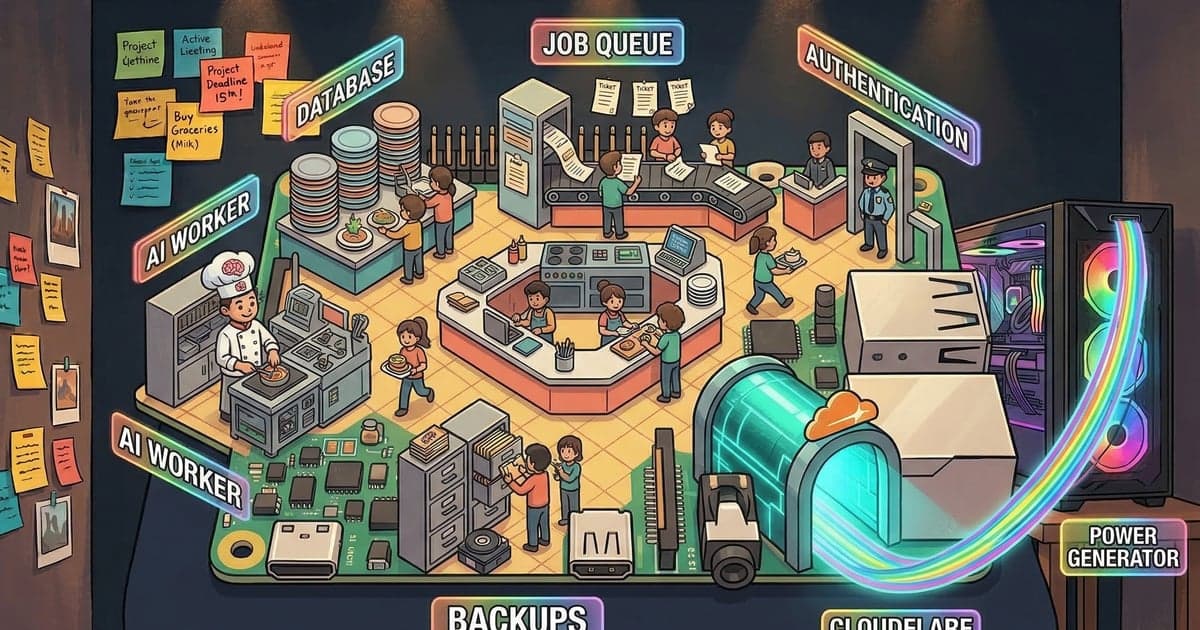
This post is about what's actually running behind the scenes. Think of it as the "here's what's in the engine" post. I'm going to walk you through the whole setup, but I promise — if you can understand how a restaurant kitchen works (different stations, different jobs, everything coming together to make your food), you can understand this.
The Big Picture: Two Computers, One App
First things first: Mythryx Brain doesn't run on just one machine. It runs on two.
Computer #1: A Raspberry Pi 5. This is a tiny single-board computer about the size of a credit card (well, a thick credit card). It costs around $80 and sits on my desk. The Pi handles the main app — the website you interact with, the database that stores your memories, the job queue that processes things in the background, and the secure tunnel that lets you access it from anywhere.
Computer #2: My home PC. This is my regular desktop computer — the one I game on, do work on, all the normal stuff. It has a graphics card (an NVIDIA RTX 3060) that's really good at a specific kind of math that AI needs. So when the app needs to do the heavy AI processing — turning your memories into searchable "meaning fingerprints" — it sends that work over to the PC, which crunches the numbers and sends the results back. Between gaming sessions, the graphics card earns its keep.
Both computers sit in my house, on my home network. Your memories never leave the building.
Why two machines instead of one? Because the Pi is great at running a web app 24/7 with almost no electricity, but it doesn't have a graphics card. And the heavy AI math runs about 50 times faster on a graphics card than on a regular processor. So each machine does what it's best at. It's like having a sous chef who's incredible at prep work — you don't make them also run the cash register.
The Six Containers: A Kitchen Analogy
Here's where I'd normally lose people, so let me try something.
Imagine the app is a restaurant kitchen. In a kitchen, you don't have one person doing everything. You have stations — someone on the grill, someone on salad, someone expediting orders. Each station has its own tools, its own space, and its own job. They all work together, but if the salad station has a bad day, the grill keeps running.
That's exactly what my app does, except instead of kitchen stations, it uses something called containers. A container is just a little self-contained package that runs one specific piece of software. It has everything it needs inside it, and it doesn't mess with the other containers. If one crashes, you restart just that one. The rest keep humming along.
I have six of them. Let me introduce the crew.
Container 1: The App Server (The Front of House)
This is the face of the operation — the waiter, if you will. When you open Mythryx Brain on your phone or computer, this is what you're talking to. It serves up the web pages, handles your login, and processes your requests. When you type a memory and hit save, this container receives it, stores it in the database, and says "got it" so you can keep going immediately.
Under the hood, it's running two things that work together: SvelteKit (which builds the pages you see) and Fastify (which handles the behind-the-scenes requests). I picked SvelteKit because it makes fast, lightweight web pages — important when you're running on a tiny computer. And Fastify because it's one of the fastest web servers out there, using about 2-3 times less resources than the more common alternatives.
It uses about 150 megabytes of memory. For reference, a single Chrome tab typically uses more than that.
Container 2: The Worker (The Kitchen's Workhorse)
This is the container that does the actual AI processing, and it's the unsung hero of the whole operation.
When you save a memory, the app server doesn't sit there and wait for the AI to analyze it — that would make the app feel slow. Instead, it drops a job ticket into a queue (more on that in a second) and responds to you instantly. The Worker picks up that job ticket in the background and gets to work.
Here's what it does with each memory:
- Sends the text to my home PC's graphics card to generate an embedding — a list of 384 numbers that capture the meaning of your memory (that "meaning fingerprint" I keep mentioning)
- Sends the text to Claude Haiku (a small, fast AI from Anthropic) to figure out what kind of memory it is, generate a title, and extract tags
- Writes all those results back to the database
You don't see any of this happening. You just save a memory and it goes from "processing" to "ready" a few seconds later. The Worker is the person in the kitchen who's quietly prepping everything while the front of house keeps smiling at customers.
Container 3: The Database (The Filing Cabinet)
Every memory you save ends up here — in a PostgreSQL database. PostgreSQL is basically the gold standard for databases. It's been around since 1996, it's rock-solid reliable, and it's free. Banks use it. Governments use it. It's not going anywhere.
But here's the cool part: I added an extension called pgvector that gives the database superpowers. Normal databases can only search by exact matches — you type "birthday" and it finds things with the word "birthday" in them. Pgvector lets the database also search by meaning. It stores those "meaning fingerprints" (embeddings) alongside your text and can find memories that are conceptually similar to what you're asking about, even if they don't share any of the same words.
So when you search "gift ideas for Mom," it doesn't just look for those exact words. It finds the memory where you noted she likes lavender candles, the one about her gardening hobby, and the one where your sister mentioned she needs a new reading lamp. One database does both keyword search and meaning search. That's the magic.
This container gets the most resources — about 1 gigabyte of memory — because it's doing the heaviest lifting. And this is why the Pi needs an NVMe SSD (a fast storage drive) instead of the standard SD card that comes with it. Running a database on an SD card is like trying to file paperwork in a sock drawer — technically possible, but painfully slow. The SSD makes database queries come back in under 100 milliseconds instead of 5+ seconds.
Container 4: Redis (The Order Ticket System)
Remember that job queue I mentioned? This is it.
Redis is an incredibly fast in-memory data store — think of it as a bulletin board where the app server pins up job tickets and the Worker pulls them off. "Hey, new memory needs processing." "Got it." That's basically the whole conversation.
It also handles caching (keeping frequently accessed data ready to go so the database doesn't get hammered with the same requests) and makes sure jobs don't get lost if something restarts. Even if the power flickers, Redis saves its state to disk every second, so your job queue survives.
It uses about 30-64 megabytes of memory. Tiny footprint, critical role.
Container 5: The Backup Service (The Insurance Policy)
This one runs once a day, takes a complete snapshot of the entire database, compresses it, and stores it in a backup folder. It keeps the last 7 daily backups, the last 4 weekly backups, and the last 6 monthly backups.
I also set up an optional off-site backup that syncs those snapshots to a cloud storage service (Backblaze B2) for about 5 cents a month. So even if the Pi catches fire — which it won't, but I'm paranoid — my memories are safe in the cloud.
This is the container people forget about until they need it. Don't be those people. Set up backups.
Container 6: The Cloudflare Tunnel (The Secret Entrance)
This is the clever one. The Pi sits inside my home network, behind my router, where the internet can't see it. That's good for security, but bad if I want to check a memory from my phone while I'm at the grocery store.
Normally, you'd have to tell your router to let outside visitors in (called port forwarding — basically opening a door in your router's security wall), set up encryption certificates so your connection is secure (HTTPS — that little padlock icon in your browser), and deal with your internet provider randomly changing your home's address on the internet. It's a headache.
The Cloudflare Tunnel sidesteps all of that. It creates a secure, encrypted connection from inside my network out to Cloudflare's servers. Then Cloudflare gives me a clean URL — like memory.mydomain.com — that routes traffic back through that tunnel to my Pi. No ports opened. No certificates to manage. Free.
The best part? Because the app now has a real HTTPS URL, it qualifies as an installable app on your phone. You can "install" it like a regular app from the App Store, and it shows up on your home screen with its own icon. No browser bar, no tabs — it looks and feels like a native app. This is called a PWA (Progressive Web App), and the Cloudflare Tunnel is what makes it possible from a home setup.
The Cost of Running All This
This is everyone's favorite part, so let me break it down honestly.
One-time hardware costs:
The Raspberry Pi 5 ran about $80. The NVMe SSD (1 terabyte, way more than I need) was about $50. The case and power supply were another $30. So roughly $160 total for the "server" — less than a single year of most cloud hosting plans.
The home PC with the graphics card? I already owned that. It was bought for gaming and other projects. The AI work is a side gig for it.
Monthly costs:
There are two kinds of AI happening in this app, and they cost very different amounts. The embedding work — turning your memories into those 384-number meaning fingerprints — runs entirely on my home PC's graphics card. Free. The model is free, the compute is on hardware I already own, the electricity is negligible.
The categorization work — figuring out what type of memory it is, generating tags, creating a title — uses Anthropic's Claude Haiku, which is a cloud service you pay per use. That costs about 70 cents a month based on my usage. With a trick called prompt caching (basically reusing the same instructions so I don't get charged for them every time), it drops even lower.
Off-site backups: about 5 cents a month.
Total monthly cost: roughly 75 cents.
Compare that to $12/month for Mem AI, $10/month for Notion's AI features, or whatever the going rate is for cloud services that might disappear next year. I'll take my 75 cents and my complete data ownership, thanks.
Why Docker? (And What Even Is Docker?)
I've been talking about "containers" without really explaining the thing that makes them possible, so let me fix that.
Docker is a tool that packages software into containers. Without Docker, installing all six of these services on a Raspberry Pi would mean manually setting up PostgreSQL, configuring Redis, making sure the right versions of everything play nice together, and pulling your hair out when an update breaks something. It's the "dependency hell" that makes developers cry.
With Docker, each service is a pre-built package. You write a configuration file (called a docker-compose.yml) that says "I want these six containers, connected like this, with these settings." Then you run one command, Docker downloads everything, sets it all up, and starts it. If something breaks, you just restart that container. If you want to move the whole thing to a different Pi, you copy the config file and run the same command.
It's IKEA furniture, but good IKEA furniture. The instructions actually work and the pieces fit together.
For beginners, the honest truth is this: Docker has a learning curve. The first time you see a docker-compose.yml file, it looks like alphabet soup. But once you understand the pattern — "this container does X, needs Y, and talks to Z" — it clicks. And once it clicks, you'll never want to set up software any other way.
The Memory's Journey: From Your Thumbs to Searchable Knowledge
Let me walk you through what actually happens when you save a memory, from start to finish. This ties the whole architecture together.
Step 1: You're at the store and your friend says "You have to try Balvenie 14 Caribbean Cask, it's incredible." You pull out your phone, open Mythryx Brain (it's installed on your home screen, remember?), and type: "Jake recommends Balvenie 14 Caribbean Cask whisky — says it's incredible."
Step 2: Your phone sends that text through the Cloudflare Tunnel to the Pi. The App Server receives it, saves the raw text to the PostgreSQL database, creates a "process this" job ticket, drops it in the Redis queue, and responds to your phone: "Saved!" This takes about half a second.
Step 3: The Worker picks up the job ticket from Redis. It sends the text to your home PC, where the graphics card generates a 384-number "meaning fingerprint" of the memory. Simultaneously, the Worker sends the text to Claude Haiku, which reads it and determines: this is a "recommendation" type memory, it involves a person named "Jake" and a product called "Balvenie 14 Caribbean Cask," relevant tags are "whisky," "recommendation," "friend," and a good title would be "Jake's Whisky Recommendation."
Step 4: The Worker writes all of this back to the database. The memory goes from "processing" to "ready."
Step 5: Three months later, you're at a liquor store and you can't remember what your friend recommended. You search "what whisky did Jake recommend?" The database does two things at once — it searches the text for the words (keyword search) and it searches the meaning fingerprints for the concept (semantic search) — and combines the results. Your memory pops right up. You buy the whisky. Jake is impressed you remembered.
That's the whole pipeline. Six containers, two computers, and your memory is searchable by meaning in under 10 seconds from the moment you save it.
What You'd Need to Build This Yourself
I'll go deeper into the actual build process in upcoming posts, but here's the shopping list if you're already itching to get started:
Hardware: A Raspberry Pi 5 (8GB version, about $80), an NVMe SSD and M.2 adapter ($50-60), a case with a fan ($15-20), and a USB-C power supply ($15). If you have a PC with a decent graphics card, that handles the embedding service. If you don't, there are CPU-only alternatives that work — they're slower, but they work.
Software (all free): Docker and Docker Compose (manages the containers), PostgreSQL with pgvector (database), Redis (job queue), SvelteKit and Fastify (the app), and a free Cloudflare account (for the tunnel — you'll also need a domain name, which runs about $10-15 a year).
Knowledge: Basic comfort with a terminal (the black screen where you type commands). If you've never used one, that's okay — we'll cover it. It's less scary than it looks. It's just texting your computer.
Time: The initial setup took me a weekend, but I was figuring things out as I went and documenting everything. With the guide I'll eventually publish alongside the open-source release, it should take a few hours.
What's Next
In the next post, I'm going to pull back the curtain on the most controversial part of this whole project: the fact that AI wrote the overwhelming majority of the code. I'll walk you through exactly how I used Claude Code — what worked, what didn't, and the methodology I developed that made the difference between "AI-generated mess" and "app I actually use every day."
Fair warning: it involves a lot of planning documents and very little magic.
This is Part 2 of the "Building My Second Brain" series. Part 1: Why I'm Building a Personal Memory App covers the origin story and why existing apps keep disappearing.
Frequently Asked Questions
Can you really run AI on a Raspberry Pi?
Yes, but with a caveat. The Pi runs the app, the database, the job queue, and the web server beautifully — it handles all the coordination and serving. The computationally heavy AI work (generating embeddings) gets offloaded to a separate machine with a graphics card. The Pi orchestrates everything; the GPU does the math. If you don't have a GPU machine, you can run a CPU-only embedding model directly on the Pi — it's slower (seconds instead of milliseconds per memory), but it works. The text categorization uses Anthropic's Claude Haiku API, which is a cloud call that works from any hardware.
How much does the whole setup cost?
About $160 in one-time hardware costs (Pi + SSD + case + power supply), assuming you already have a PC with a graphics card. Monthly running costs are approximately 75 cents — that's AI API charges and off-site backup storage. No subscriptions, no hosting fees, no per-user charges. The software is entirely free and open source.
What happens if my internet goes down?
The app keeps working on your local network — you can still save and search memories from any device connected to your home WiFi. You just can't access it from outside your house until the internet comes back. The Cloudflare Tunnel automatically reconnects when the connection is restored, no intervention needed. And since the database and all processing happens locally, nothing is lost during an outage.